Wednesday, September 2, 2026

How to Remove White Background in Illustrator | Image Trace Tutorial

```html

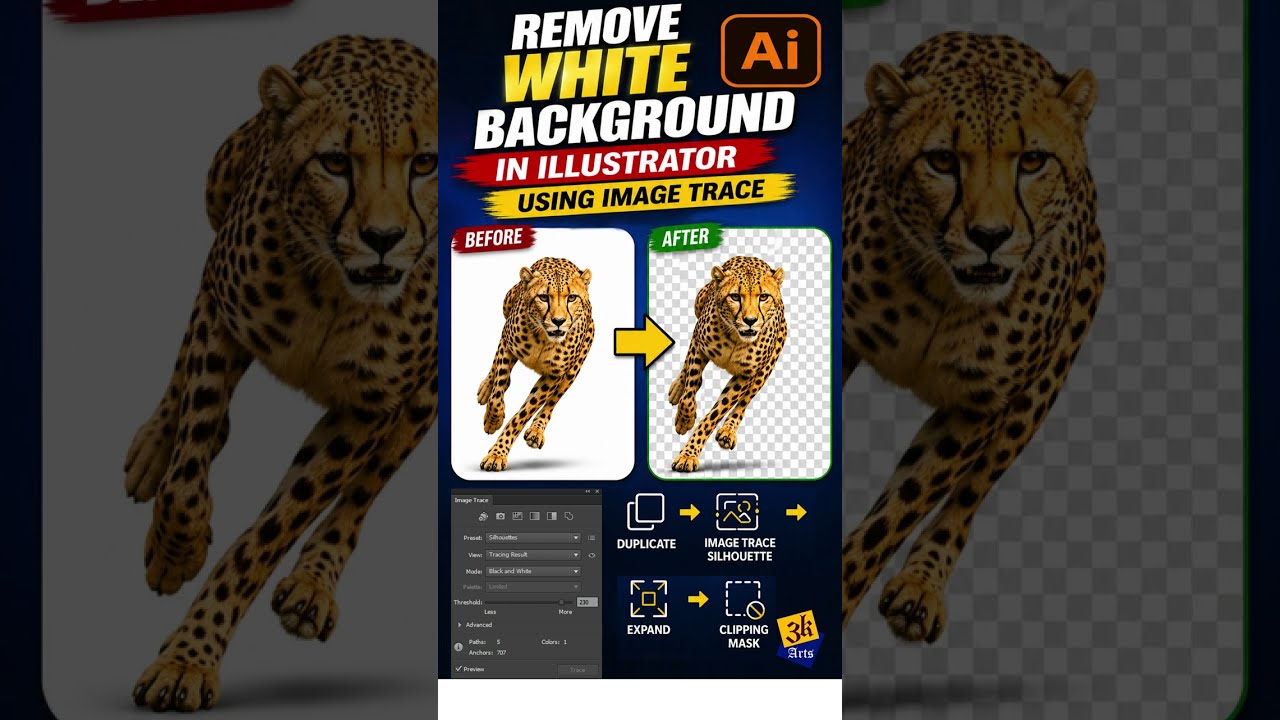
How to Remove White Background in Illustrator Using Image Trace

Learn how to quickly remove a white background from a JPG image in Adobe Illustrator using Image Trace. This is a simple and useful technique for graphic designers and beginners.

🎬 Watch the Tutorial

👉 Watch the Video on YouTube

What You Will Learn

In this short Illustrator tutorial, you’ll learn how to easily remove a white background from a JPG image using Image Trace.

  • Duplicate the original image
  • Use Image Trace → Silhouette
  • Align the traced image with the original
  • Use Object → Expand
  • Create a Clipping Mask
  • Remove the white background easily

How to Remove White Background in Illustrator

Step 1: Duplicate the Original Image

First, place your JPG image in Adobe Illustrator and create a duplicate of the original image. Keeping the original image as a backup is useful while editing.

Step 2: Use Image Trace

Select the duplicated image and open the Image Trace options. Choose:

Image Trace → Silhouette

This converts the image into a silhouette that can be used for the next steps.

Step 3: Align the Traced Image

Align the traced image with the original JPG image. Make sure both images are positioned correctly before continuing.

Step 4: Expand the Image Trace

Once the Image Trace result is ready, go to:

Object → Expand

This converts the traced artwork into editable vector paths.

Step 5: Create a Clipping Mask

Use the expanded artwork together with the original image to create a Clipping Mask. This helps isolate the required area of the image.

Step 6: Remove the White Background

After creating the clipping mask, the unwanted white background can be removed, leaving the required image area clean and ready for your design.

Why Use This Illustrator Technique?

This method is useful when working with JPG images that have a plain white background. It can help graphic designers prepare images for logos, posters, social media designs, stickers, print designs, and other creative projects.

🎥 Watch the Full Short Tutorial
▶ Watch on YouTube

Conclusion

Removing a white background from a JPG image in Adobe Illustrator can be done quickly using Image Trace, Silhouette, Expand, and Clipping Mask. This is a simple and useful Illustrator technique for both beginners and professional graphic designers.

Subscribe to 3K Arts for more Adobe Illustrator tips, Photoshop tutorials, graphic design tricks, and useful design techniques.

Related Keywords

Illustrator Image Trace, How to Remove White Background in Illustrator, Remove White Background Illustrator, Adobe Illustrator Tutorial, Image Trace Tutorial, Illustrator Background Removal, JPG Background Removal, Illustrator Clipping Mask, Illustrator Silhouette, Object Expand Illustrator, Adobe Illustrator Tips, Illustrator Tutorial for Beginners, Graphic Design Tutorial, Vector Design, Design Tips, 3K Graphic Arts

Tags

#illustrator #adobeillustrator #imagetrace #removebackground #whitebackground #BackgroundRemoval #illustratortutorial #graphicdesign #vectordesign #adobetips #designtips #shorts #youtubeshorts #3kgraphicarts

```
Photoshop Puppet Warp Tutorial: Straighten Any Object Easily | Beginner Guide

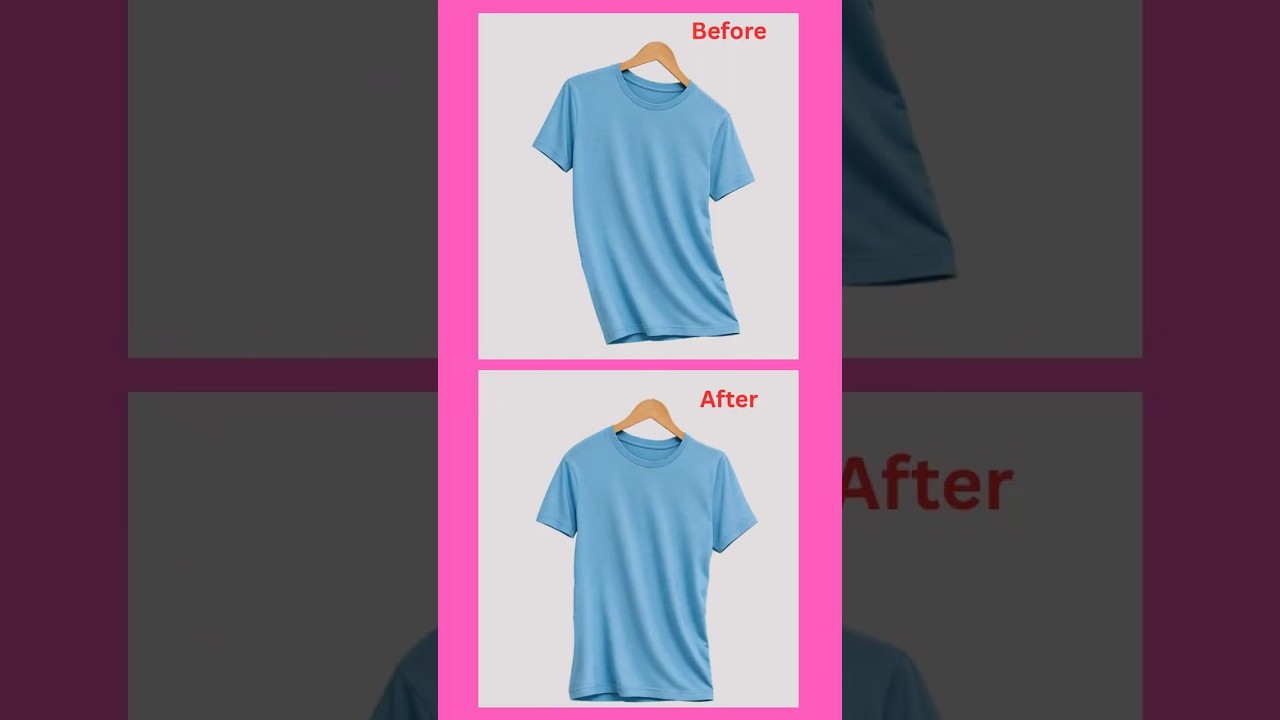
Photoshop Puppet Warp Tutorial | Straighten Any Object Easily

Learn how to use the Puppet Warp Tool in Adobe Photoshop to straighten, reshape, and adjust any object easily. This simple Photoshop technique is useful for beginners, graphic designers, and photo editors.

🎬 Watch the Tutorial

👉 Watch Photoshop Puppet Warp Tutorial on YouTube

What is Puppet Warp in Photoshop?

Puppet Warp is a powerful Photoshop transformation tool that allows you to control and reshape specific areas of an image using pins.

Instead of rotating or transforming the entire object, you can adjust only the required parts while keeping other areas in position.

What Can You Do With Puppet Warp?

  • Straighten curved or tilted objects
  • Adjust the shape of an object
  • Move specific parts of an image
  • Correct minor distortions
  • Create precise photo adjustments
  • Improve product images and graphic designs

How to Use Puppet Warp in Photoshop

Step 1: Open Your Image

Open Adobe Photoshop and load the image you want to edit.

Step 2: Select the Object

For better results, separate the object from the background using Photoshop's selection tools or the Remove Background option.

Step 3: Apply Puppet Warp

Select the required layer and go to:

Edit → Puppet Warp

Photoshop will display a mesh over the selected object.

Step 4: Add Pins

Click on different areas of the object to add pins. Place pins on important areas that you want to keep in position.

Step 5: Straighten the Object

Click and drag the pins to adjust the shape of the object.

By placing additional pins around important areas, you can prevent unwanted movement while straightening the required section.

Step 6: Apply the Changes

Once you are satisfied with the result, click the ✓ Apply button to confirm the transformation.

That's it! You can now straighten or reshape an object using Photoshop Puppet Warp.

Tips for Better Results

  • Don't use too many pins.
  • Place pins strategically around important areas.
  • Duplicate your original layer before editing.
  • Zoom in when making precise adjustments.
  • Use smaller adjustments for a more natural result.

🎥 Watch the Photoshop Tutorial

▶ Watch Video on YouTube

More Photoshop Tutorials

If you want to learn more Photoshop tips, tricks, and beginner-friendly tutorials, follow 3K Graphic Arts for more graphic design content.

👉 Watch More Photoshop Tutorials

Conclusion

Photoshop Puppet Warp is a useful tool for straightening and reshaping objects without affecting the entire image. With a few strategically placed pins, you can easily control different parts of an object and create a cleaner result.

If you found this tutorial helpful, like the video, subscribe to the channel, and share it with other Photoshop learners.

Related Keywords

Photoshop Puppet Warp Tutorial, Puppet Warp Photoshop, How to Straighten Object in Photoshop, Photoshop Straighten Object, Puppet Warp Tool, Photoshop Tutorial for Beginners, Adobe Photoshop Tips, Photoshop Tips and Tricks, Photoshop Photo Editing

```

Featured Post

How to Remove White Background in Illustrator | Image Trace Tutorial

```html How to Remove White Background in Illustrator Using Image Trace Learn how to quickly remove a white background from a JPG image in...

Popular

ads